How to Create and Use Share Links
Every Web Studio ⎋ project has its own published page, a real web page that shows your finished project without the code editor around it. Published pages are perfect for showing off your work, linking projects together, or turning in a project.
Make Your Project Public
Before you can share a project, you need to make it public.
- Open your project in Web Studio and select the Settings toggle.
- Under Visibility, select Public.
- Select Save settings.
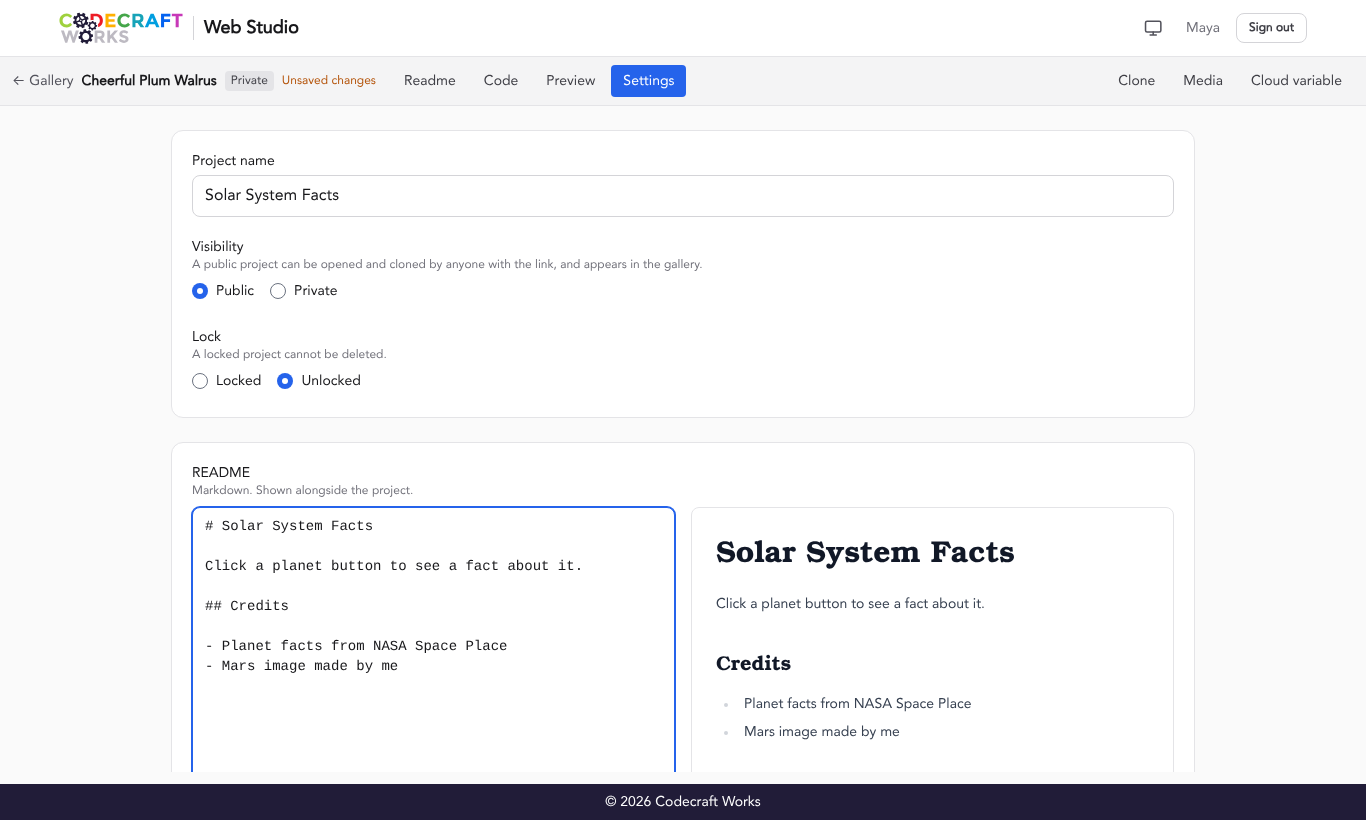
Once your project is public, a Share button appears in the toolbar. Public projects also appear in the Web Studio gallery and on your profile, and anyone with the link can open and clone them.
Get Your Share Links
Select the Share button in the toolbar. The Share pop-up has two links, each with a Copy button:
- Published page: your finished page on its own, at an address like
https://codecraftworks.dev/web/abc123/. This is the link to use when you want people to see your project. - Open in Web Studio: the project in the editor, at an address like
https://studio.codecraftworks.com/abc123. This is the link to use when you want people to see your code, or clone your project.
Select Open published page to view your published page in a new tab.
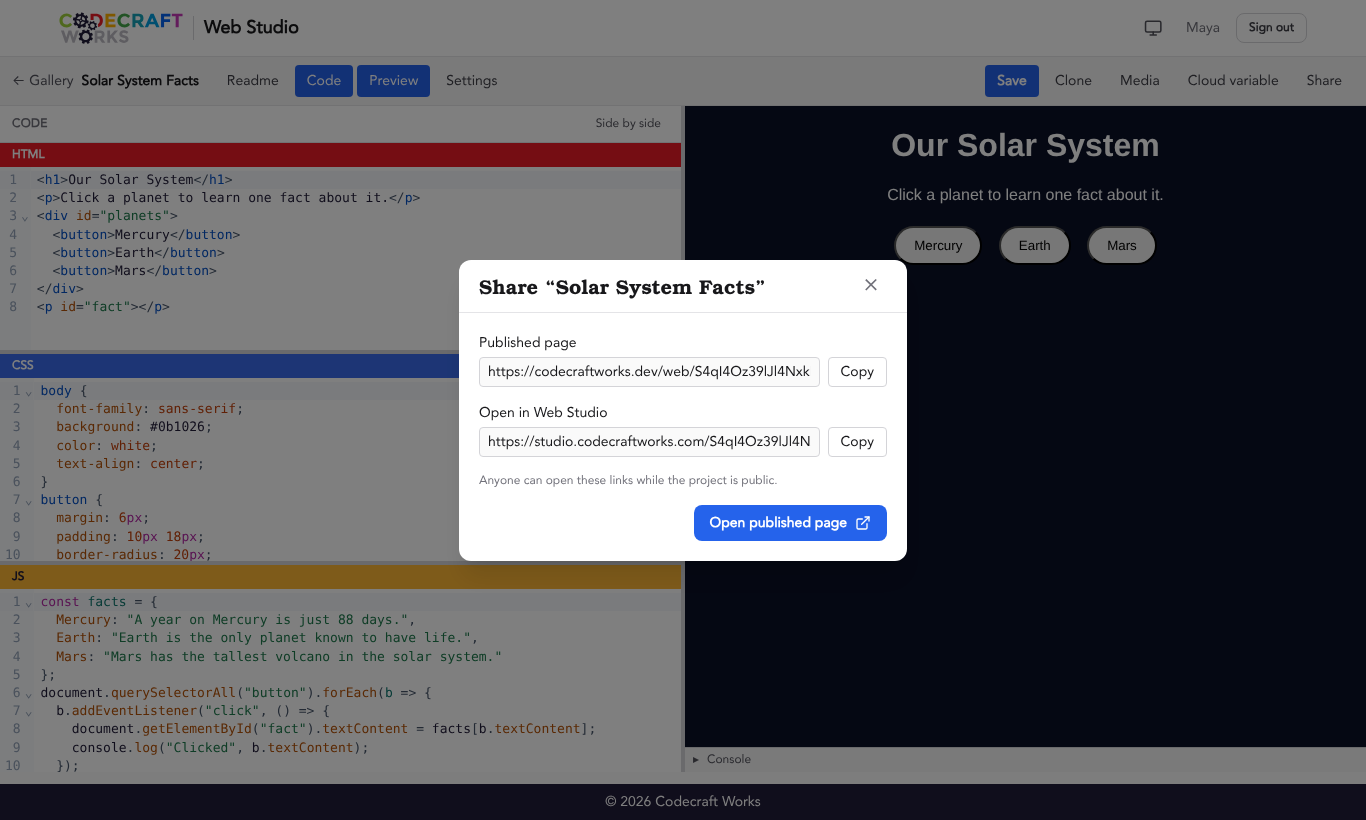
Your published page updates on its own every time you save, so you never need to “re-publish.” It may take a moment after saving for the changes to appear.
Link to Other Projects
There will be times when you will want to include links to other projects, either created by yourself or someone else. Or maybe you want to include a link to another website as a source or reference. Adding a link requires use of an anchor tag, represented by <a></a> within the HTML. There are two very important attributes to use when creating a link - the href attribute, which is the URL of the site or project you wish to link, and the target attribute, which determines how the web browser opens the link.
To link to another project, copy its Published page link from the Share pop-up. The HTML for a typical link will look like this:
<a href="https://codecraftworks.dev/web/abc123/" target="_blank">My Other Project</a>
- The first
<a>is called the “opening tag” and contains thehrefandtargetattributes - The
hrefattribute is the project or webpage you are linking to - The
targetattribute tells the browser how to open the link. There are four supported values -_blank,_self,_parent, and_top_blankopens the link in a new tab_selfopens the link in the same tab. This is also the default behavior if thetargetattribute is not set_parentopens the link in the document’s parent frame_topopens the link in the full window
- In between the two
<a>tags is the text that will act as your link. When a user clicks on the text, they will be taken to the URL set by thehrefattribute
The _parent and _top attributes are not used often nowadays, but you may find them being used in older websites that still use HTML frames for layout.
A good rule to follow is to use _blank for external links and _self for internal links. So for instance, if you are creating a link to a reference page found on a site like Wikipedia, use _blank for the link. If you are creating a navigation and are using different projects to represent different pages of a website, use _self for the links (or do not include the target attribute as _self is the default behavior).

Notice that in the above example, the navigation links do not have a target attribute. This is because this project is using other projects to simulate a multi-page website.
Below are the links to the project pages so you can experiment and see for yourself how internal navigation works in project files: