How to Sign In to Web Studio
Web Studio ⎋ uses Codecraft ID, the same sign-in used across Codecraft Works’ apps. If you already have a Codecraft Works account, you do not need to make a new one. Sign in the same way you always have, and your web projects will be waiting for you.
You can browse public projects in Web Studio without signing in. You need to sign in to create, save, or clone a project.
Instructions
-
Go to studio.codecraftworks.com ⎋ and select the Sign in button in the upper right corner.
-
You will be taken to the Codecraft ID sign-in page. Choose the option that matches your account (see below).
-
Once you are signed in, you will be returned to Web Studio. Your display name and a Sign out button appear in the upper right corner.
Sign-In Options
Google or Microsoft
Select Sign in with Google or Sign in with Microsoft and choose your account.
Email Link
Enter your email address in the Email address field and select Send magic link. Check your email and select the link to finish signing in; there is no password to remember. If you open the link on a different device or browser than the one you started on, you will be asked to enter your email address again to confirm it.
Competition Students
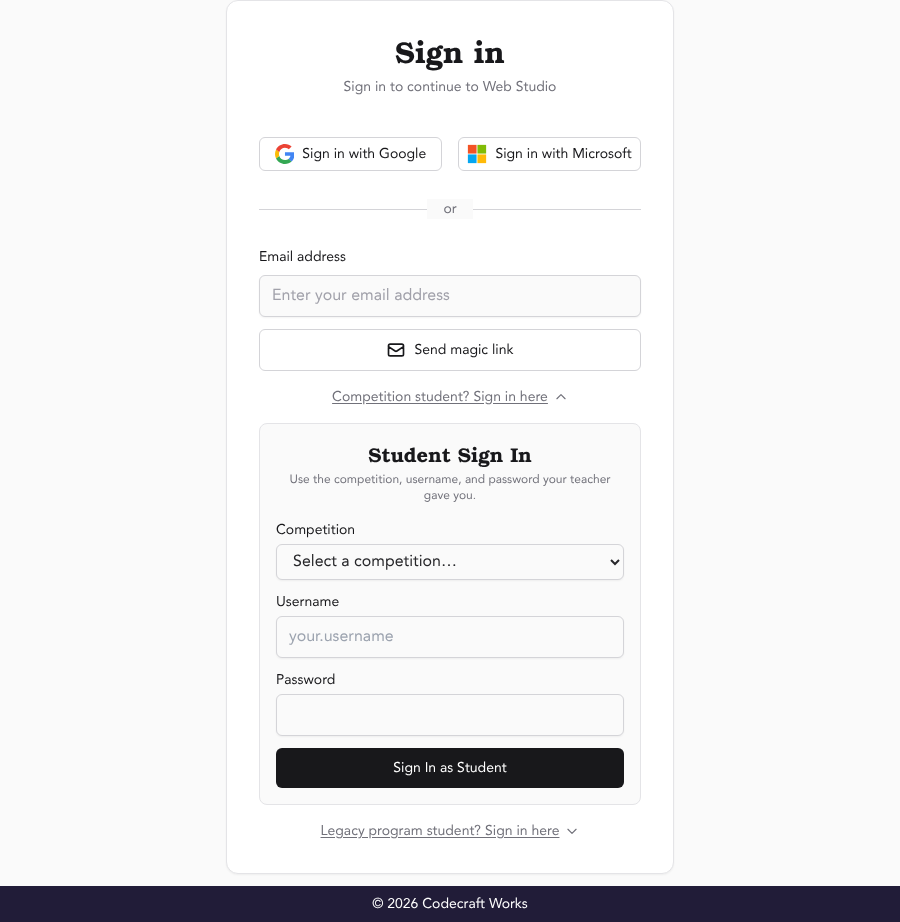
Students competing in a Codecraft Computer Programming Competition (CCPC), like the Sunshine State Innovation Games, will use the account their teacher created for them.
- Select Competition student? Sign in here.
- Choose your competition from the Competition list.
- Enter the Username and Password your teacher gave you. If you forgot your password, ask your teacher. They can reset it for you at ccpc.codecraftworks.com ⎋.
- Select Sign In as Student.
Classroom Students With Passwords
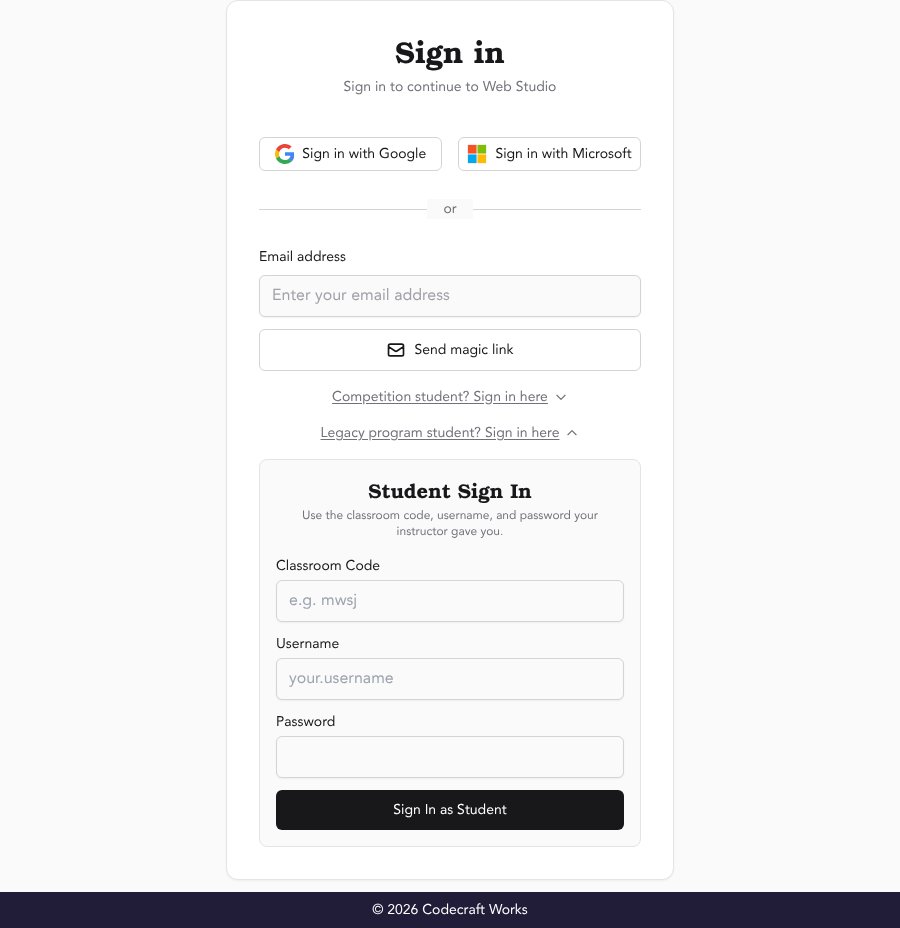
Students whose teacher created a student account with a password on a legacy program page sign in this way:
- Select Legacy program student? Sign in here.
- Enter your Classroom Code. This is the short code at the end of your class’s program link. For example, if your program link is
app.codecraftworks.com/p/abcd, your classroom code isabcd. - Enter your Username and Password.
- Select Sign In as Student.
The First Time You Sign In
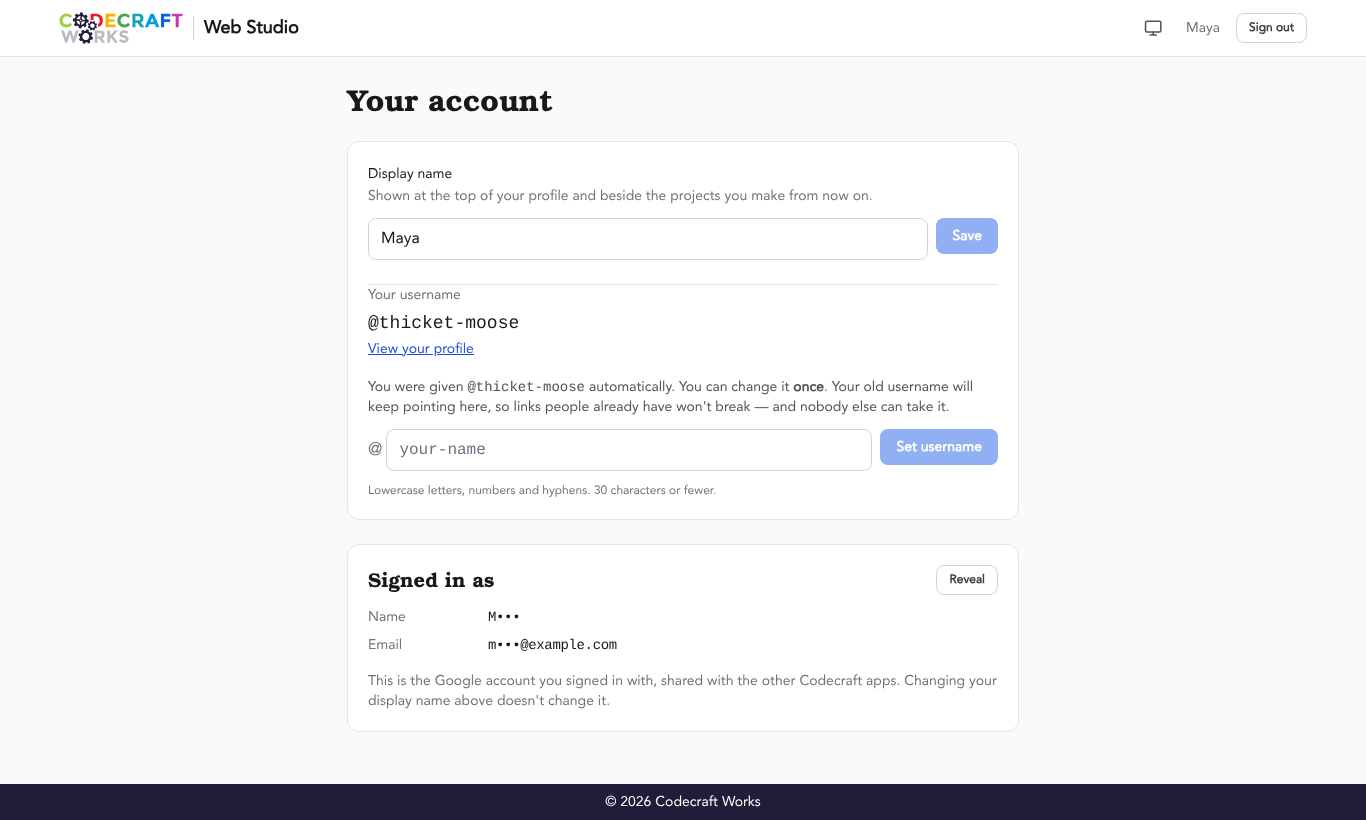
The first time you sign in to Web Studio, you are automatically given a username, like @thicket-moose. Public projects you make are listed on your profile at studio.codecraftworks.com/u/your-username.
To manage your name, select your display name in the upper right corner to go to the Your account page. There you can:
- Change your Display name, which is shown beside the projects you make. Your display name is shared with Codecraft’s other apps.
- Change your username one time. Your old username will keep working, so links people already have won’t break.
Signing Out
Select Sign out in the upper right corner. This signs you out of Web Studio and of Codecraft’s other apps, which is important on a shared or school computer. Remember to save your work before you sign out!
Related articles
- Web Studio Quick Start
- How to Create a New Web Project
- How to Log in to Student Accounts With Passwords