How to Share a Web Project for a Competition
Are you or your students new to Web Studio? Here are some helpful tips for sharing your web project with a Codecraft Computer Programming Competition (CCPC)! In order for web projects to be accessible to CCPC judges, they must first be made “Public” in Web Studio. New Web Studio projects are private, and a private project is not viewable to anyone other than the project’s creator and Codecraft Works instructors.
How to Sign In With a Competition Account
-
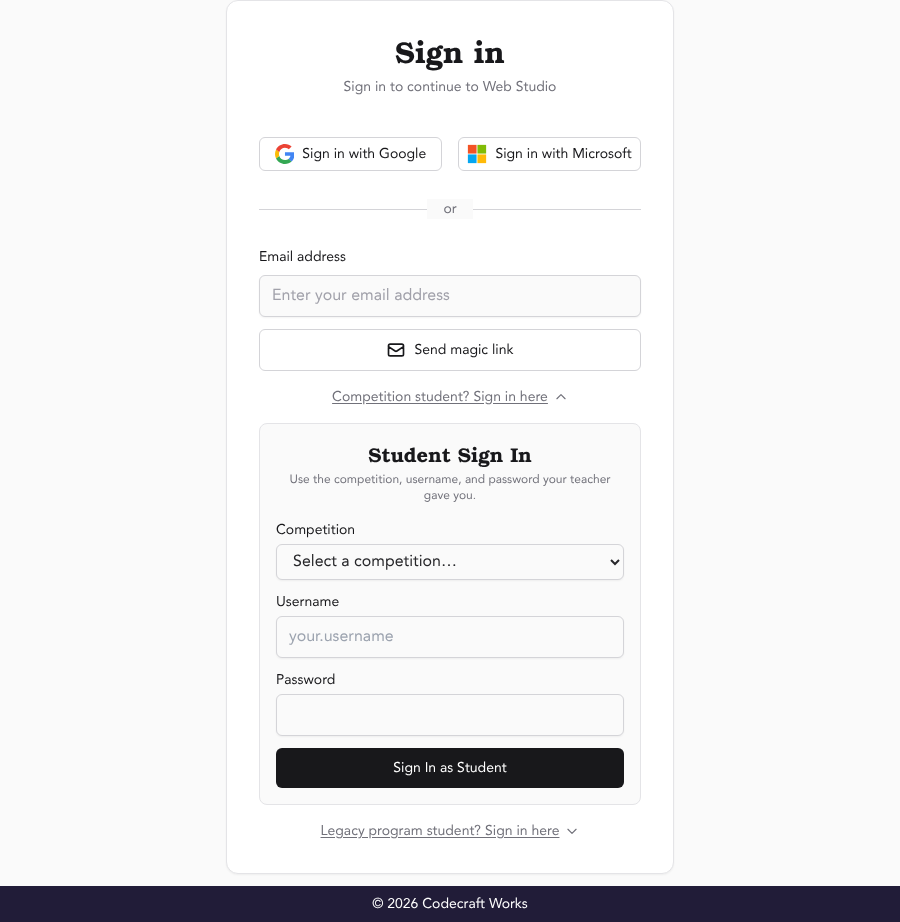
First, students should sign in to Web Studio with the competition account their teacher or coach created for them, so their project is saved to that account.
Go to studio.codecraftworks.com ⎋ and select Sign in. On the sign-in page, select Competition student? Sign in here, choose your competition from the Competition list, and enter the Username and Password from your teacher or coach. Then select Sign In as Student.
-
If the “Competition student?” option is missing, or the username and password don’t work, contact your teacher or coach. Teachers can reset a student’s password by re-uploading that student’s row on their competition roster.
For more sign-in help, see How to Sign In to Web Studio.
Create Your Project First
This article assumes you already have a web project in Web Studio. If you haven’t made one yet, follow How to Create a New Web Project first, signing in with your competition account.
How to Make a Web Project Public
-
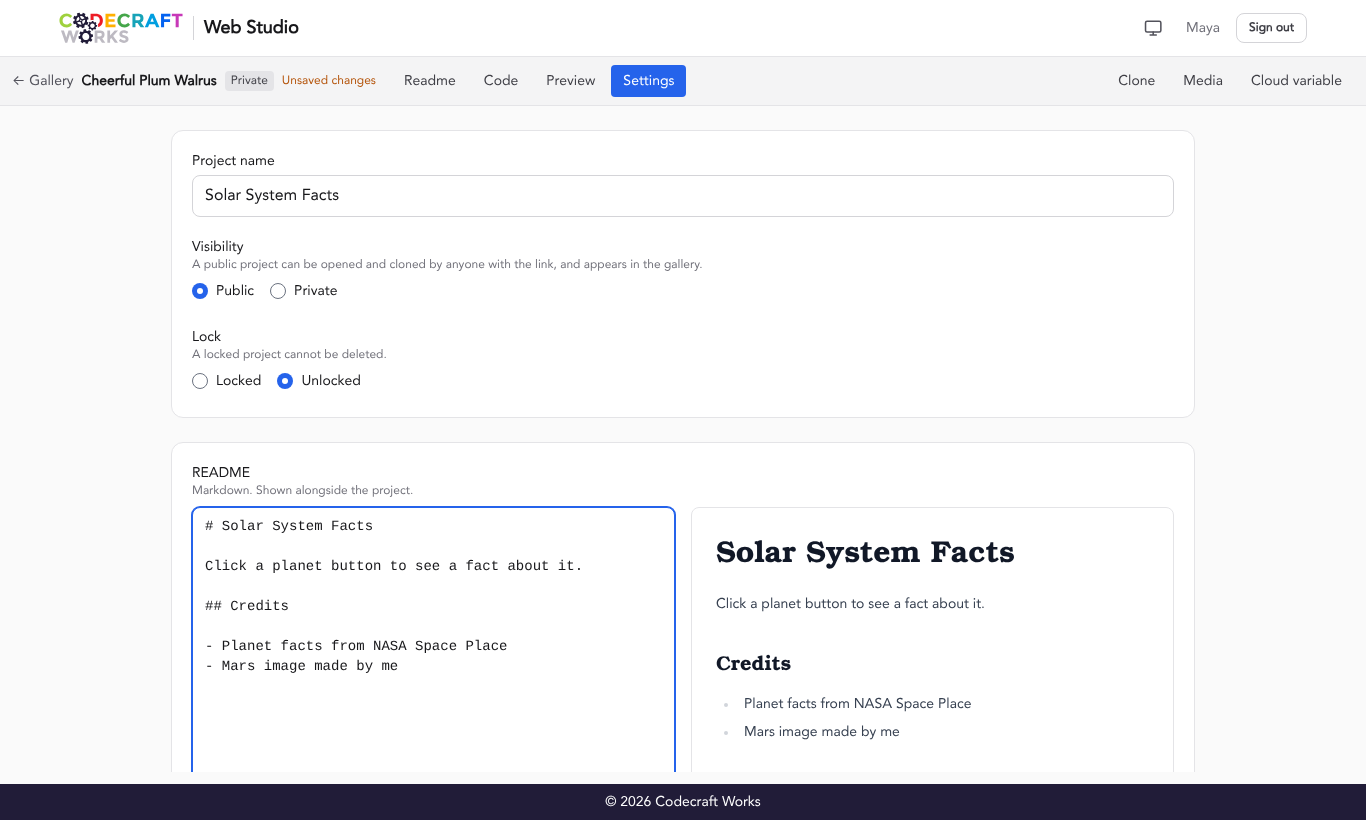
Open your project in Web Studio and select the Settings toggle in the toolbar.
-
Under Visibility, select Public. Then select Save settings.
-
Once the project is public, the “Private” label next to the project name goes away and a Share button appears in the toolbar.
Before sharing, double-check that your project has a clear name and a complete README that includes anything your competition guidelines require, like credits for media you didn’t create or documentation of AI tools you used. See How to Create a Readme in Your Project.
How to Get Your Project’s Link
-
Select the Share button in the toolbar.
-
Select Copy next to Published page. This link, which starts with
https://codecraftworks.dev/web/, shows your finished project on its own, the way judges will see it.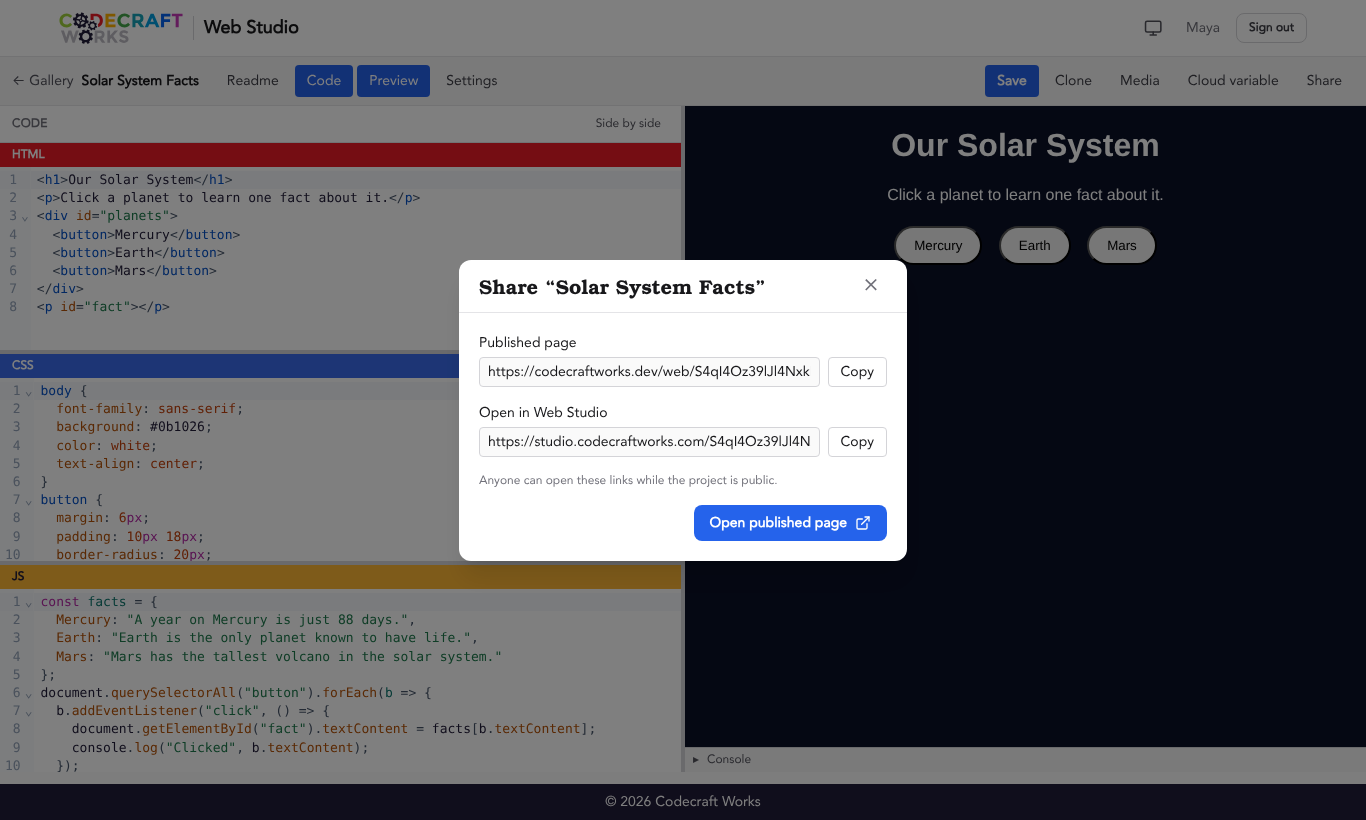
-
Test your link! Paste it into a private or incognito browser window, where you are not signed in. If you can see your project, judges can too.
Your published page updates every time you save, so you can keep improving your project until the submission deadline. Remember to select Save after every change; Web Studio does not save automatically.
For more information, read How to Create and Use Share Links.
How to Share a Project with a Partner
It can be difficult for a team of students to collaborate on a web project, especially when they aren’t in the same room! Web Studio projects can only be saved by the account that owns them, so teams can work together in two ways.
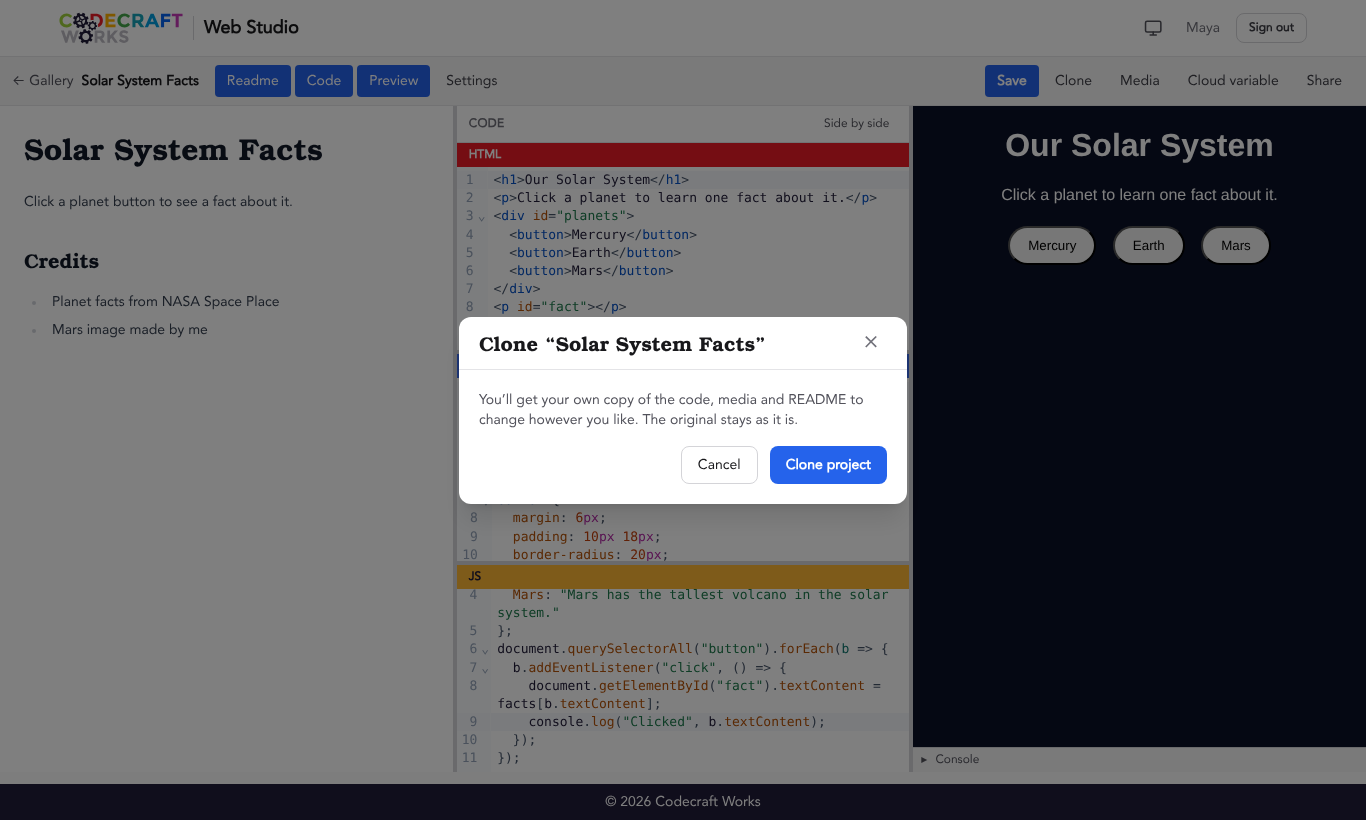
Option 1: Build one project together. Choose one teammate’s project as the team project and have partners “Clone” it:
-
If a student clicks the Clone button on a public project owned by another person (like their partner), it will save a full copy of that project, including its code, media, and README, to the student’s account.
-
The student can then edit their copy of the project and save their own changes. Changes to a copy do not change the team project.
-
When a partner is ready to add their work to the team project, they make their copy public and send the owner its Open in Web Studio link from the Share pop-up. The owner opens it, copies the new code, pastes it into the team project, and selects Save.
-
Partners can clone the team project again any time to pick up the owner’s latest changes. They can continue to work back and forth like this.
See How to Clone a Web Project for more details.
Option 2: Link several projects together. Each teammate builds one or more pages of the website in their own project, and the pages link to each other using each project’s Published page link. See How to Create and Use Share Links to learn how to link projects together.
Teams can build one project together or split their website across several students’ projects and link the pages together. Each team submits one link, so pick the project that will be the site’s home page, and make sure every linked project is set to Public.
How to Submit a Web Project to a CCPC
For instructions on submitting a project to your CCPC, please refer to your competition guidelines. The guidelines also include the relevant dates for project submission.
If your competition does not have posted guidelines, view this article for submission instructions: How to Submit a Project to a Codecraft Computer Programming Competition (CCPC)
Have another question about Web Studio? Start with the Web Studio Quick Start or How to Sign In to Web Studio.